Who we are
Check out our launch story.
How to Login / Sign up
No usernames or passwords.
- Enter your email address on the login page.
- Check your mailbox! - you will receive a code by email.
- Enter the code and submit. That's it!
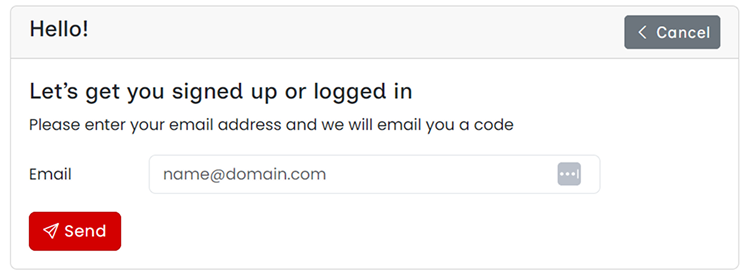
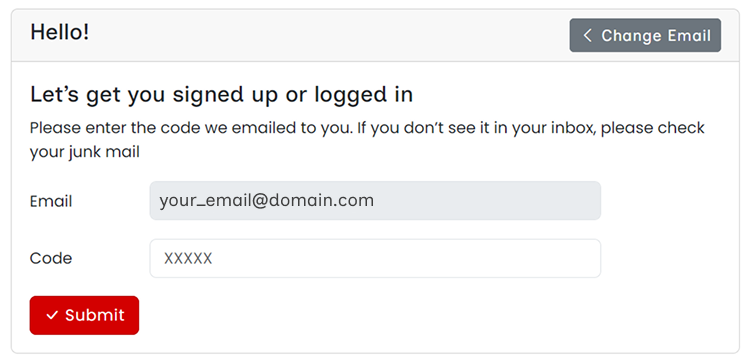
One email per account. If you have more than one account, you can switch between them from the account switcher on your Profile tab.
Get the mobile app
Northsocial.ca is available for iPhone and Android. Sign in with the same email you use here — your account, feeds and Groups come with you.
Setting Up Your Profile
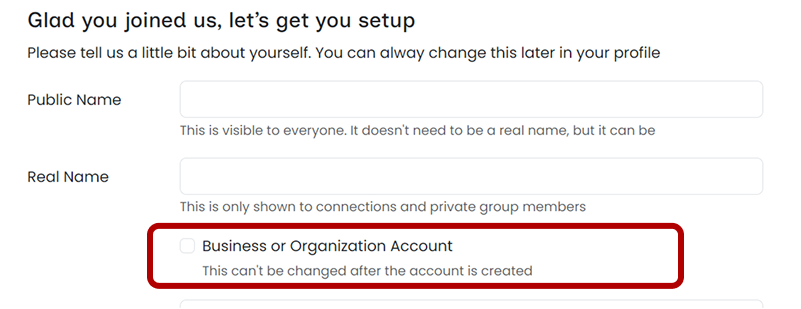
- Enter a Public Name: This is the name shown on your posts and comments.
- Enter your Real Name: To prove you're not a robot — only visible to your connections.
- Choose if this is a Business or Organization Account: Tick this at sign-up if applicable (cannot be changed later).
- Selecting a Handle (required):
- Your Handle is a unique identifier that lets people find and tag you easily.
- It appears in your profile URL like this: northsocial.ca/@handle.
- Just copy the link from your profile page and paste it in your posts like this: northsocial.ca/@handle (you don't need the https://). Easily tag and promote your profile!
- About & Link (optional): Tell us a little about yourself or your business, or add a link to your website.
- And finally: Accept the Terms of Service, confirm age (18+) and Canadian residency when updating profile info.
Switching between accounts
If you have more than one account — a personal account and a Business or Organization account, for example — you can move between them without signing out.
- Open your profile menu: Select your profile picture in the top corner of any page.
- Choose Switch account: A list of the accounts you are signed in to opens, each with its public name and handle.
- Pick the account you want: The page reloads into that account. A checkmark always shows which account you are using right now.
Connections vs Follows
- Connections: Connect with friends and family to see, share and engage with your social circle privately. Connection requests must be accepted by the recipient to allow private sharing.
- Follows: Follow your Connections, businesses or influencers to prioritize what you see. Latest posts from followed accounts appear at the top of your feed.
What is Public vs Private
Private Posts
- Personal Accounts: Visible only to connected personal accounts.
- Business Accounts: Visible to all your connections.
- Comments on private posts are visible to everyone who can see the post.
- Private posts are encrypted and stored on Canadian servers.
Public Posts
- Visible to everyone.
- Stored on Canadian servers, served globally for performance.
Creating a Post
- From the bottom navigation, click on the New icon
 .
. - Choose either Private or Public for your post.
- Give your post a Title if you want and say what you want to say in the text area.
- Once you are happy with your post, select the Post button
 .
. - That's it! You've made your first post on Northsocial.ca.
Uploading Images To Your Post
- To add a photo to your post select the image upload button
 and follow the steps according to your device.
Uploading a video
While you are writing a post, select Add Video and choose a clip from your device.
- One video per post, up to 60 seconds, and under 200 MB.
- A post is either a video or photos — not both.
- Video can be added to public posts.
- Your video is processed after it uploads. You can publish as soon as it is ready, and it plays right in the feed.
- A video cannot be changed after posting — delete the post if you need to replace it.
News Feeds
Sharing News Content
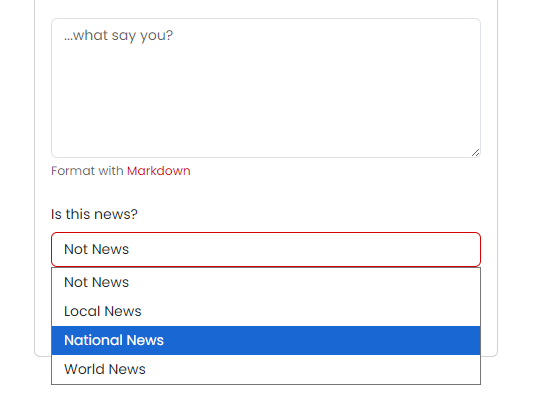
- Users can now categorize their news content as Local, National, or World news.
- Local News is a showcase for what's happening at a local level in different regions, cities and towns across Canada.
- National News is Canadian news, not specific to a local region.
- World News captures current events happening outside of Canada that may still be relevant to Canadians.
- Create a new Public Post and select the category from the dropdown.
Finding News Content
- Go to the News feed in the top bar navigation
 .
. - Choose a category to start viewing.
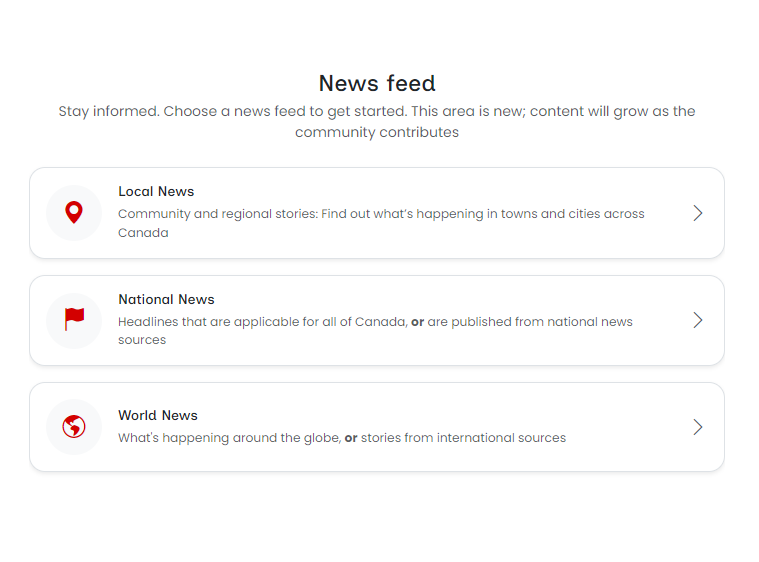
Note: This is a brand new area for us, so content will grow as the community contributes.
News Tabs on Profiles
User profiles now have a new tab for News content they've posted.
Groups
Finding & Joining Groups

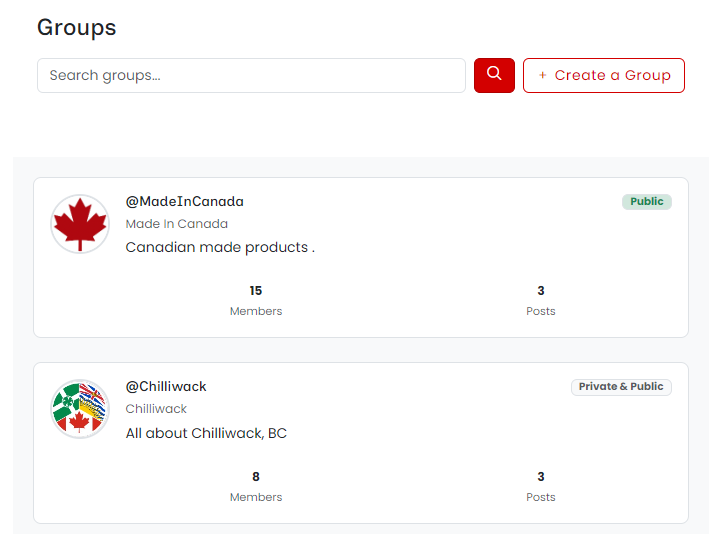
- Select Groups in the navigation menu to see the Groups you belong to and to browse Groups you might want to join.
- If a Group accepts everyone, selecting Join makes you a Member instantly. If a Group requires approval, your request goes to the Group's Admins, who can approve or decline it.
- Once you're a Member, you can post in the Group, comment and react on members-only posts, and see the full member list. You can leave a Group at any time.

Creating a Group
- To create your own Group, select Create a Group on the Groups page. Create a Group
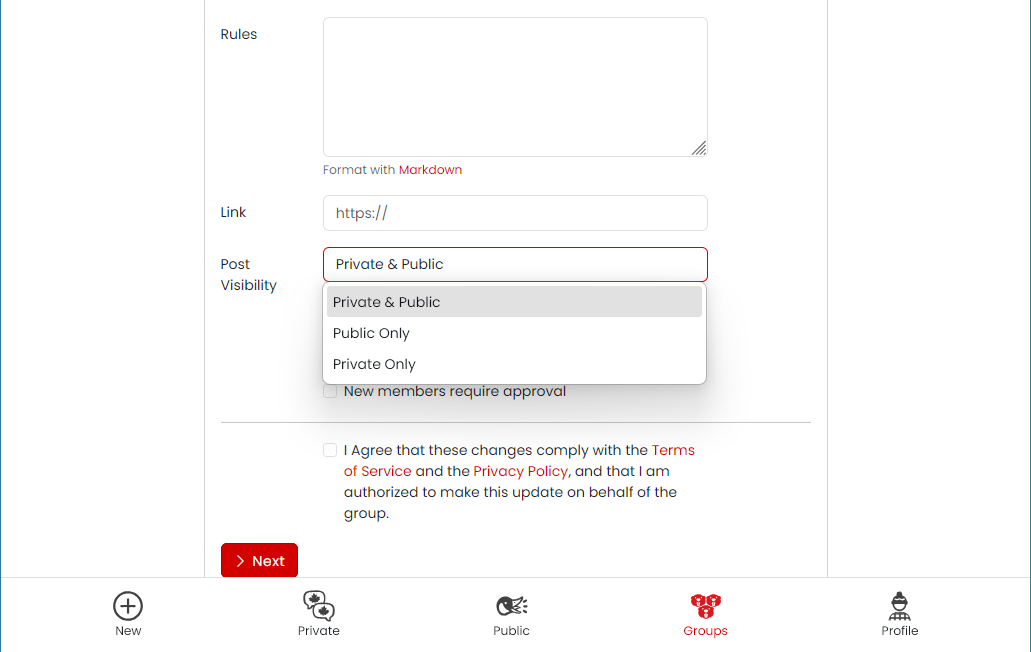
- Choose a handle and name, set the visibility for your Group, and decide whether new members need your approval to join. You'll automatically become the Owner.
Group Privacy & Posting
- Public Only: Anyone can find the Group, see its posts, and request to join. Best for open communities.
- Private Only: Only members can see the Group's posts and member list. Best for closed communities, internal teams, or sensitive topics.
- Private & Public: A mix: some posts are visible to everyone, others to members only. Best for organizations that want public reach plus a private space for members.
When you post inside a Group, you choose whether each post is Private (members only) or Public (visible to everyone, with a chip showing it was posted in the Group). Private-only Groups don't allow public posts.
Member Roles
- Member: can post, comment, and react in the Group.
- Moderator: can also remove inappropriate posts and members.
- Admin: can also edit the Group, approve join requests, and promote or demote Members and Moderators.
- Owner: full control, including the ability to delete the Group. A Group can have more than one Owner.
Controlling Content in Your Feed
Hiding Users
You can now hide content from specific users.
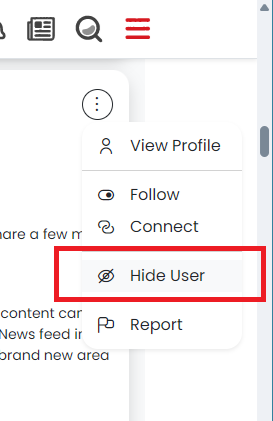
- Open the menu on a post,
- Or visit the user's profile and select Hide User from the ⋯ dropdown menu.
- Their posts will no longer appear in your feeds.
- You can manage your hidden users from the Hidden tab in your profile.
- Unhide anyone at any time.
- The other user will not be notified.
Feed Improvements
- Users can have up to two posts per day appear in a feed.
- If a user posted more content than is shown, a link will appear that takes you to their profile to see the rest.
Tips for Businesses and Organizations
- Use your connections like a private group for promotions and insider info.
- Share exclusive content with loyal customers or members.
Tips for Personal Accounts
- Treat private posts like sharing with family and close friends.
- Use public posts for broader updates.
| Key Differences: Personal vs Business Accounts | ||
|---|---|---|
| Feature | Personal Account | Business/Organisation Account |
| Private Posts | Only personal connections see them | All connections see them |
| Real Name Visibility | To connections only | To connections only |
| Public Name | Visible to all | Visible to all |
| Handle | Required | Required |
Why This Matters
- Keeps privacy-first for individuals.
- Enables secure, targeted communication for businesses.
- Aligns with Canadian data sovereignty and compliance standards.